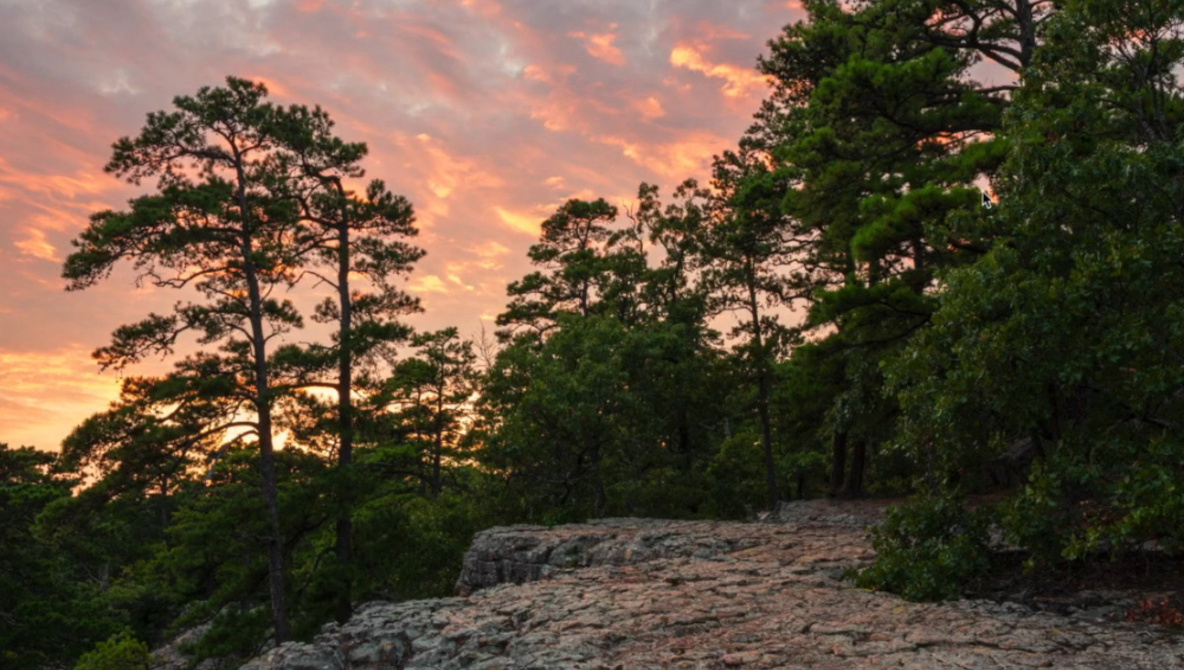
Editing a raw landscape file in Lightroom often decides whether an image feels lifeless or close to what you saw on the trail. This video walks through a complete landscape workflow that keeps the edit grounded in reality instead of turning everything into neon drama.
Coming to you from Michael Scott, this practical video starts in the Develop panel with something many people avoid: the camera profile and the Auto button. Scott shows why choosing the Adobe Landscape profile can give you richer shadows and color as a baseline instead of fighting a flat default profile. He then taps Auto to let Lightroom place an initial set of tonal adjustments, not as a final look, but as a way to see where the file naturally wants to land. From there, he adjusts white balance by memory of the actual scene instead of trusting the camera’s guess. You see him nudge tint and temperature until the file matches what he remembers, which is a useful reminder that you are allowed to trust your own eyes.
Scott also walks through the basic sliders with a simple rule that keeps you out of trouble: avoid pushing anything to 100% unless you have a very specific reason. He sets white and black points using Lightroom’s shortcuts, then fine-tunes while watching for clipping instead of guessing. Texture, clarity, and dehaze get treated like specialty tools, used sparingly and often on targeted masks instead of globally across the frame. Vibrance and saturation get a clear explanation, with vibrance handling the softer colors and saturation affecting everything at once, which explains why cranking saturation tends to make landscapes look cheap and overcooked. The tone curve becomes the main source of contrast, with a gentle S-curve or a medium-contrast preset doing most of the heavy lifting so the basic panel does not have to.
Color work stays subtle, with the color mixer and color grading tools used to push the file back toward the colors Scott remembers from the scene rather than toward some trendy palette. He uses color grading mainly on highlights, then toggles the effect off and on to make sure it is doing something you can feel but not immediately spot. Sharpening is treated as polish instead of rescue, and he is very clear that if focus was missed in the field, Lightroom and Photoshop will not save it. You see him zoom to 100%, pick a detailed area, and then use masking so sharpening hits edges and textures while leaving the sky and smooth tones alone. That approach is a good check on the idea that the “sharpness” slider is really just edge contrast, not a fix for sloppy technique.
Later in the video, the workflow moves into the tools that separate a quick edit from a thoughtful one: lens corrections, transformations, and especially masks and filters. Scott enables chromatic aberration removal and profile corrections to clean up fringing and vignetting before committing to any final look. Instead of relying on the Effects panel vignette, he builds a custom vignette with a radial filter so he can control exactly where the darkening falls and how soft the transition feels. Sky masks combined with linear gradients let him darken the upper sky more than the lower parts for a natural falloff, while intersect and subtract options keep the trees from getting muddy. He uses additional linear and radial filters to add back small patches of light where he remembers sun hitting tree tops and rocks, which is the kind of detail that makes a landscape feel like a place instead of a generic scene. After the main edit, he comes back to 100% and sweeps across the frame for distractions, sensor dust, and little bits of trash, using Lightroom’s newer removal tools but still trusting a manual check more than automation. Check out the video above for the full rundown from Scott.
And if you really want to dive into landscape photography, check out our latest tutorial, “Photographing the World: Japan II – Discovering Hidden Gems with Elia Locardi!”